A Guide to After Effects Expressions
Expressions are a powerful tool in After Effects that allows you to automate animations without manual keyframing. They are used for dynamic effects - from simple layer connections to complex procedural animations. After Effects expressions save time and make projects easier to maintain and scale. As the project gets more complex, small mistakes start to creep in. Even a tiny syntax error can trigger performance problems, and in some cases, it can break the whole system. So keep in mind that managing expressions in large production environments, with many compositions and multiple versions, becomes chaotic without a structure.
This guide will explain what Adobe After Effects expressions are, how to add and type them, and what mistakes to avoid. We will cover practical tips for working effectively with expressions.
What Are Expressions in After Effects
Expressions function as brief code segments that enable users to control layer properties in After Effects through dynamic execution. The expression system calculates property values for all time points without requiring users to create keyframes. Knowing how to use expressions will speed up your workflow because a single line of code can replace multiple keyframes. How to Add and Type Expressions in After Effects.
How to open the expression field
- Select a layer and press Alt+click (Windows) or Option+click (Mac) on the clock icon next to any property.
- The property turns yellow, and a field for entering code opens below.
- The expression is immediately active - After Effects starts executing it as soon as you type it.
Use Pict Whip for visually linking properties
The Pict Whip is a spiral icon next to the expression field that allows you to drag a link to another property. This is useful when you want one property to follow another - for example, the Opacity of one layer follows the Ratio of another. After Effects automatically generates the code for you, which is ideal for beginners.
Enter the code manually
Expressions in After Effects use JavaScript syntax (ExtendScript). By typing, for example, wiggle (2, 30), the layer automatically shakes without a single keyframe in the Position property.
Important: watch out for brackets, quotes, and semicolons. One syntax error kills the entire expression.
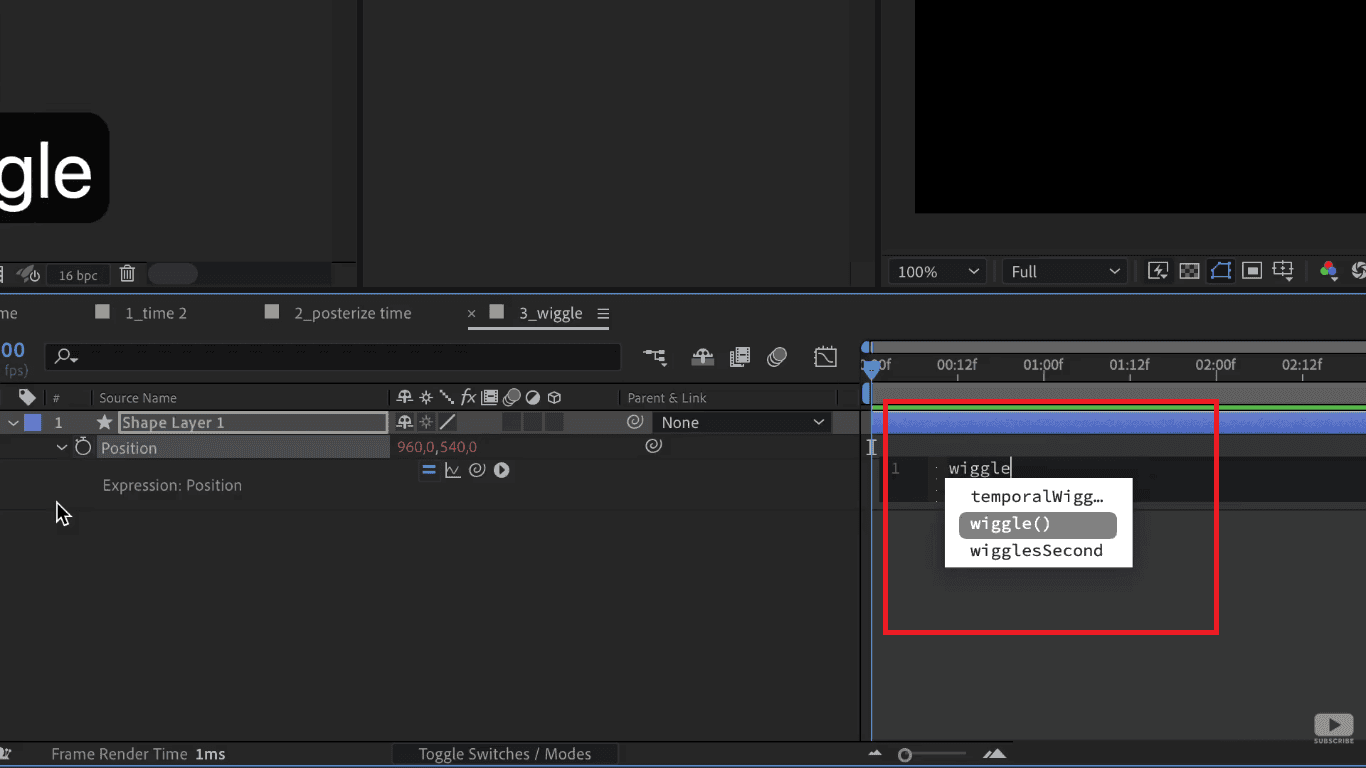
Image source:
Basic syntax tips
- Type directly into the expression field the property you want to control. For example, add to the Opacity of a layer to dynamically link its value to another layer: thisComp.layer("Layer name").transform.opacity
- It is useful to use value as a reference to the original value of the properties before the expression.
- Write comments with //, which is useful for documenting complex expressions.
Nexrender offers automation
When a project contains a large number of expression-driven animations, local rendering can be slow and unstable. Nexrender allows such projects to be automatically rendered on servers or in the cloud without loading the local computer. It is especially useful when the same expression-heavy template is rendered in multiple versions or formats.
How to Open Expressions in After Effects
Reveal expressions in the timeline
Press E on a selected layer to reveal all the properties that an expression has. Double-clicking on an expression field opens it for editing directly in the timeline. To view all expressions in a composition, use Edit > Find to search by layer name.
Edit existing expressions
Before making changes, create a duplicate of your project or implement version control. Be careful: one wrong change can break the entire project. Use code modifications to address essential requirements while preserving all existing lines of code you do not understand. In order to save your composition changes, check whether all layers referenced by the expression still exist in the composition.
Temporarily disable expressions
Click the = icon next to an expression field to temporarily disable it without deleting it. This is useful when you test animations and want to see what they look like without expressions. This way, the expression remains saved, and you can turn it on with a single click.
Shortcuts and efficiency tips
- Ctrl + Z also works inside the expression editor.
- Don't forget the undo button, if you mess up.
- Use an external editor like VS code to write more complex expressions, then copy them into After Effects.
- Give clear names to the layers that the expressions reference. For example, layer ("big_circle") is much easier to keep track of than layer ("shape layer 14").
How to Use Expressions in After Effects
Loop animation
- loopOut("cycle") on any property with keyframes automatically repeats the animation infinitely.
- loopOut("pingpong") does the same, but the animation goes back and forth, which is useful when you need to insert breathing, pulsing, or rocking
- loopIn("cycle") does the same as loopOut, but repeats the animation before the first keyframe. This is useful when the animation needs to be active from the very beginning of the composition.
- loopOut("continue") does not repeat the animation; it keeps moving in the same direction forever. This is ideal for infinitely moving backgrounds or scrolling text.
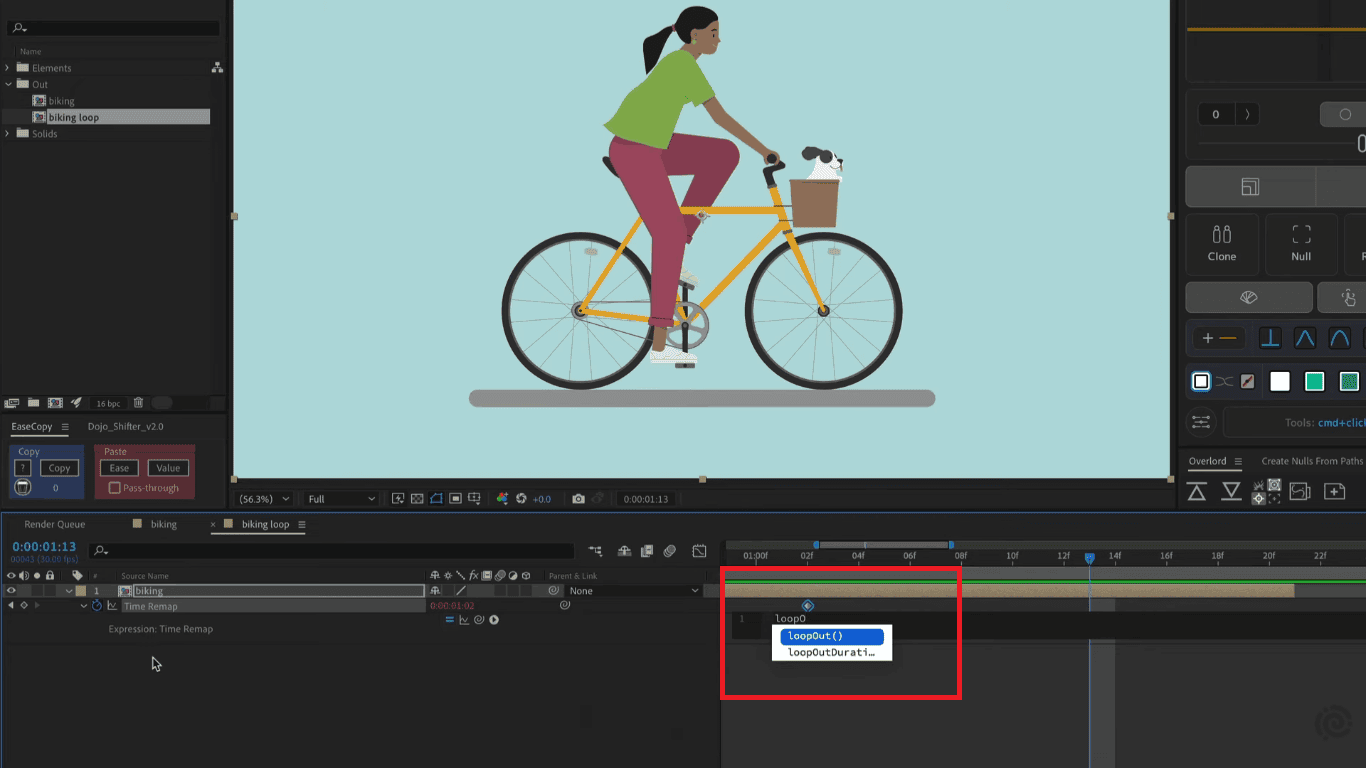
Image source:
Dynamic text
- Expression on text source can pull data from other layers and control null objects or external sources.Example: displaying the current frame count: "Frame: " + timeToFrames(time) - automatically updates the text during playback.
- footage("data.csv").sourceText - allows pulling data directly from a CSV file, which is powerful for automatically generating multiple versions with different texts.
- Binding text to a slider control on a null object: effect("Slider Control")("Slider").value.toFixed(0) + "%" displays the percentage that changes when the slider is moved. This is useful for infographics and animated dashboards.
Linking properties
- The most common use case refers to linking the scale of one layer to the Opacity of another. Thus, changing one value automatically changes the other.
- Null object as a "control center". In this way, you refer all expressions to one layer, and by changing that one layer, you control the entire project.
- Pick Whip automatically generates a reference, but it is good to understand the code it generates.
- thisComp.layer("Control").effect("Checkbox Control")("Checkbox") allows a checkbox on a control layer to turn on or off the visibility or effect of another layer, which is convenient for quickly switching between animation variants.
- Linking the rotation of the clock hands to real time -new Date().getSeconds() * 6 - automatically calculates the rotation angle of the second hand based on the system time, without a single keyframe.
Common mistakes
- Referencing a layer that doesn't exist or has been renamed. The expression is extinguished, and a yellow or red error appears in the timeline.
- Further, incorrect syntax: a single missing closing parenthesis or an incorrect method name breaks the entire expression.
- Using expressions on a property that is not numeric is also a mistake. For example, trying to wiggle applied to the text source will not work.
Troubleshooting
The red line that appears under a property field indicates that there is a mistake in that particular field. The error message becomes accessible when you click on the error icon that appears beside the field. Disable the expression before manually checking all values, then re-enable it. The primary reason for multiple simultaneous project errors occurs when users rename or delete layers on which different expressions depend.
Best Practices of using After Effects Expressions
Keep After Effects expressions list simple and modular
One expression should do one thing. If you have 5-6 lines, consider breaking them up into smaller parts. A modular approach makes debugging easier and helps the project be understandable to everyone on the team. Also, name layers and controls clearly - null_master_control says more than Null 1.
Comment out complex expressions
Use // to explain what a line does, especially with mathematical formulas or conditional logic. Comments are the difference between getting the hang of it quickly and spending hours of confusion when you come back to your project. One short sentence per block of code is enough; you don't have to comment every line.
Avoid unnecessary nesting and loops
Expressions that call other expressions slow down After Effects, especially on longer compositions. If the preview becomes slow after adding expressions, look for a more direct path to the same result. Value is often all you need as a starting point before you start building a complex reference.
Test on small compositions
Before inserting into a production project, test the expression in a clean composition with a minimum number of layers. This will isolate potential bugs before they propagate throughout the project. Create a "sandbox" composition that you keep in the project only for testing new expressions.
Use proxies and pre-compilers for heavy projects
If your composition has a lot of expression-driven animation, pre-compile the heavier parts to reduce the load. Proxies allow you to work with lighter versions of the footage during editing and replace the originals only at render time. Pre-composing groups of layers with similar expressions keeps the timeline clean.
Automate expression-heavy projects with Nexrender
When a project uses many expressions, local rendering can be slow and unstable. Nexrender handles resource-intensive rendering consistently, regardless of project complexity. It is especially powerful for batch renders and large template-based projects where the same expression-heavy setup is rendered in dozens or hundreds of variants.
Advanced Expression Techniques
Conditional statements (if/else logic)
If (time < 1) { value } else { 0 } allows a property to have different behavior at different times in the composition. This option is useful for animations that automatically turn on or off at a specific frame without keyframes. Combine with the checkbox control on the null object for even more flexible logic, because a single click changes the behavior of the entire system.
Time-based animations
Time * 360 on the rotation property gives a constant rotation that never stops. You control the speed with a multiplier. Math.sin(time * 2) * 50 produces a smooth oscillation using the sine function. It is more natural than wiggle for predictable movements.
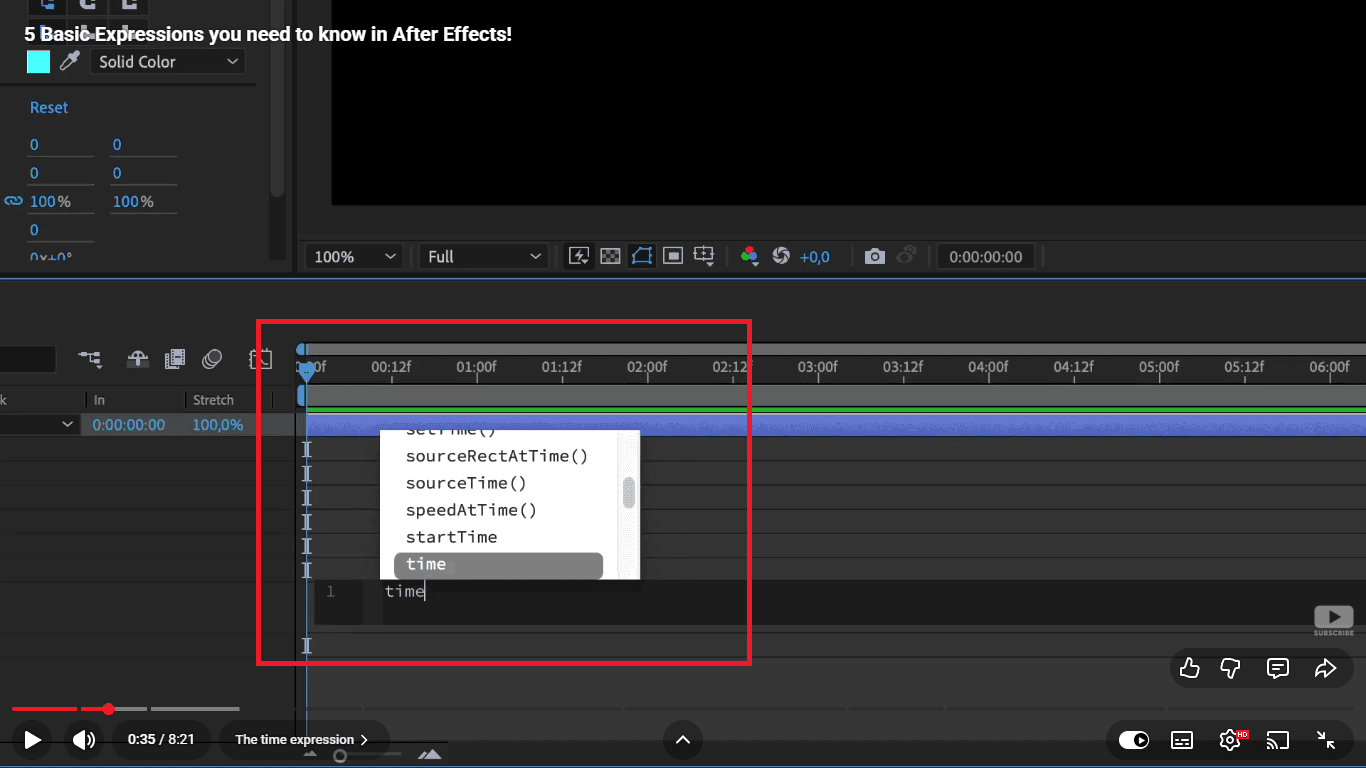
Image source:
Linking multiple layers at once
A single slider on a null object can simultaneously control scale, opacity, and blur on different layers through separate expressions that all reference the same source. This approach to the so-called "master control" system saves time and reduces the possibility of errors in final project edits. Expressions that share the same data source make the project easier to hand off to a client or another animator.
Debugging and error handling
A red border around the composition panel means there is an expression error somewhere in the composition. Press E to find it quickly. try { } catch(err) { value } prevents a single error from crashing the entire expression. In a chat block, return the value as a fallback. After Effects errors are often descriptive, so read the message before you start randomly changing code.
Integration with scripts and automation tools
ExtendScript scripts can automatically add, change, or delete expressions across multiple layers at once, which is invaluable for large projects. Nexrender fits naturally into this workflow. Once the scripts are prepared and parameterized, Nexrender takes over rendering, executing it automatically and consistently. The combination of After Effects scripts, expressions, and Nexrender represents the basis of a professional motion design pipeline that scales without additional manual work.
Summary
People think that expressions are difficult to understand, but all professionals begin their learning process with a wiggle(2, 30). The most important step - start. Your understanding of expressions will improve through your experience with multiple projects. You shift your question from "how do I animate this manually" to "what expression would solve this". Mistakes show you which areas need improvement, but they are essential for your development, and every mistake you fix makes you faster the next time.