After Effects Keeps Crashing: What to Do
If you've ever lost a project in the middle of rendering, you're not alone. This happens to even experienced motion designers. You've noticed that crashes occur more often during rendering and complex projects. Rendering is the time when After Effects pushes the GPU, CPU, and RAM to the max and then crashes the easiest. Problems are often invisible while you're working and are related to a bad plugin, a memory leak, or a corrupt file.
In the rest of the article, we'll go through the most common causes of crashes: from memory and drivers to projects and plugins. For each cause, we'll provide specific steps to resolve it, without any technical jargon that might confuse you.
Why After Effects Keeps Crashing?
After Effects crashes for several reasons, and it's rarely just one. Outdated software, low computer memory and graphics processing power, damaged files and caches, and third-party plugin problems create most software issues that cause After Effects to crash.
Outdated software
Using outdated versions of After Effects and plugins can cause system crashes unrelated to your specific project or the hardware you use.
- After opening After Effects, navigate through its menu to select Help, followed by the Updates option. There you can find all available updates.
- Install all pending Adobe updates.
- Check your plugins by visiting their official websites to find which versions are compatible with your current version of After Effects.
- Turn off all plugins and then reactivate them one at a time until you find the faulty plugin.
Low RAM or GPU
After Effects is a memory-intensive application.
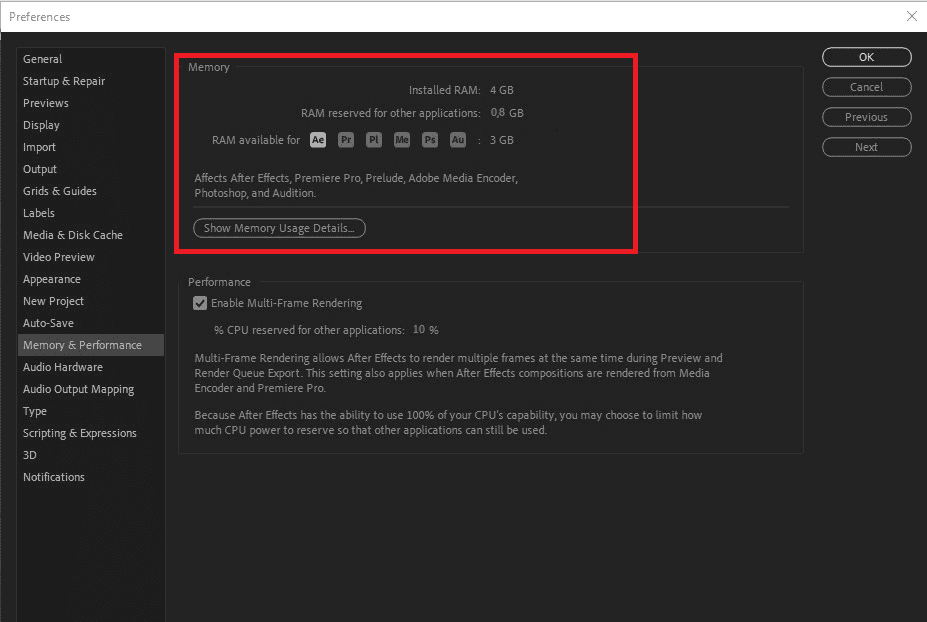
- Check how much RAM After Effects is allowed to use. Go to the Edit > Preferences > Memory section to change the setting, which needs to keep 4GB free for operating system functions.
- Users with 16GB or less of RAM should consider upgrading their system. The minimum RAM requirement for complex projects should be 32GB, according to practical standards.
- Update your GPU driver by visiting the manufacturer's website to download the most recent driver.
- In Preferences > Display, check whether the GPU acceleration option is active. Disable it when After Effects crashes. The problem can occur because of this particular component.
Corrupted cache or files
Caches accumulate as you work and can become corrupted over time. Corrupted work throughout a project is a silent culprit that is hard to find, but easy to fix once you isolate it.
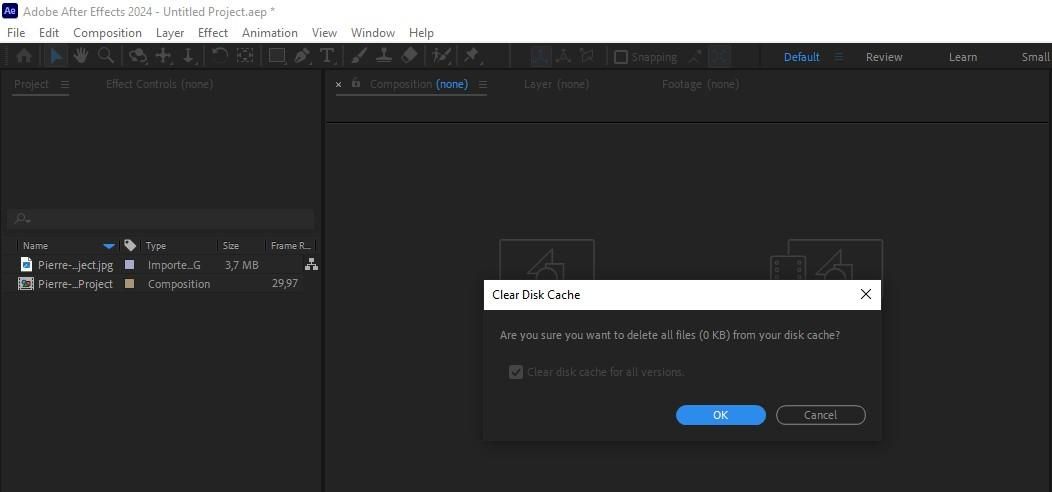
- Go to Edit > Purge > All Memory and Disk Caches, and clear everything. Try it whenever After Effects starts to crash unexpectedly.
- In Preferences > Media and Disk Caches, check where the cache is stored and how much space it is taking up. If your disk is almost full, that can cause a crash.
- If After Effects keeps crashing when opening the project, the problem is probably in a file within the composition. Start disabling layers one by one - when the crash stops, you have found the culprit.
- Try importing the suspect file again from its original location. If the torch is damaged, reimporting often solves the problem.
Too many effects and layers
Complex compositions with lots of layers, nested comps, and 3D elements exponentially increase the stress on the system. After Effects has no built-in overload protection.
- Reduce the preview resolution while you work. Top menu: Composition Viewer > Half or Quarter. This drastically reduces the stress on memory.
- Pre-render the heavy sections of the project. Render them separately as video files, then import them back into the main project. After Effects will treat them as regular video layers, without reprocessing the effects.
- Use the Solo button to isolate and work on one layer or composition at a time, instead of having After Effects process everything at once.
Plugin conflicts
Plugin conflicts are insidious. After Effects crashes, and the error message doesn't mention any plugin by name. The only way to fix them is to eliminate them systemically.
- Close After Effects. In the plugins folder, temporarily move the third-party plugins to another location.
- Launch After Effects together with a project that does not use any installed plugins. The program demonstrates its stability by functioning properly after all plugins have been disabled.
- Install each plugin separately while testing program stability at each step. The moment crashes resume, you will discover which element caused the issue.
Why After Effects Keeps Crashing When Opening Project?
Crashes occur when programs encounter corrupted files or missing assets, when multiple plugins conflict, or when different software versions fail to work together. Use these instructions to repair the issue:
- Launch After Effects in Safe Mode by using Shift + Alt on Windows or Shift + Options on Mac during the startup process. The immediate plugin test shows which plugins create problems because all plugins stopped functioning.
- Make an empty project first before bringing in the problematic project through File > Import. After Effects will load content only from the project while skipping the corrupted metadata.
- Access Edit > Preferences > Auto Save to locate the AutoSafe folder, because it stores project versions that offer better stability compared to pre-crash states.
- The project will not open until you verify the After Effects version used for its creation and then attempt to access the project through that specified version.
Why After Effects Keeps Crashing During Render?
Rendering is the process during which After Effects puts the most strain on the system. Memory, GPU, and CPU are all working at full speed, so even the smallest problem will surface. The most common causes are memory overload, GPU issues, and overly heavy effects. What to do if After Effects crashes during rendering:
- Go to Edit > Process > Memory and reduce the amount of RAM After Effects uses. Leave more space for the system, especially if you are rendering long and complex sequences.
- In Preferences > Display, switch rendering from GPU to CPU or vice versa. Sometimes it is GPU acceleration that causes crashes during rendering.
- Divide the render into smaller segments instead of rendering everything at once. After Effects handles shorter sequences more easily. Also, if one segment crashes, you don't lose your entire work.
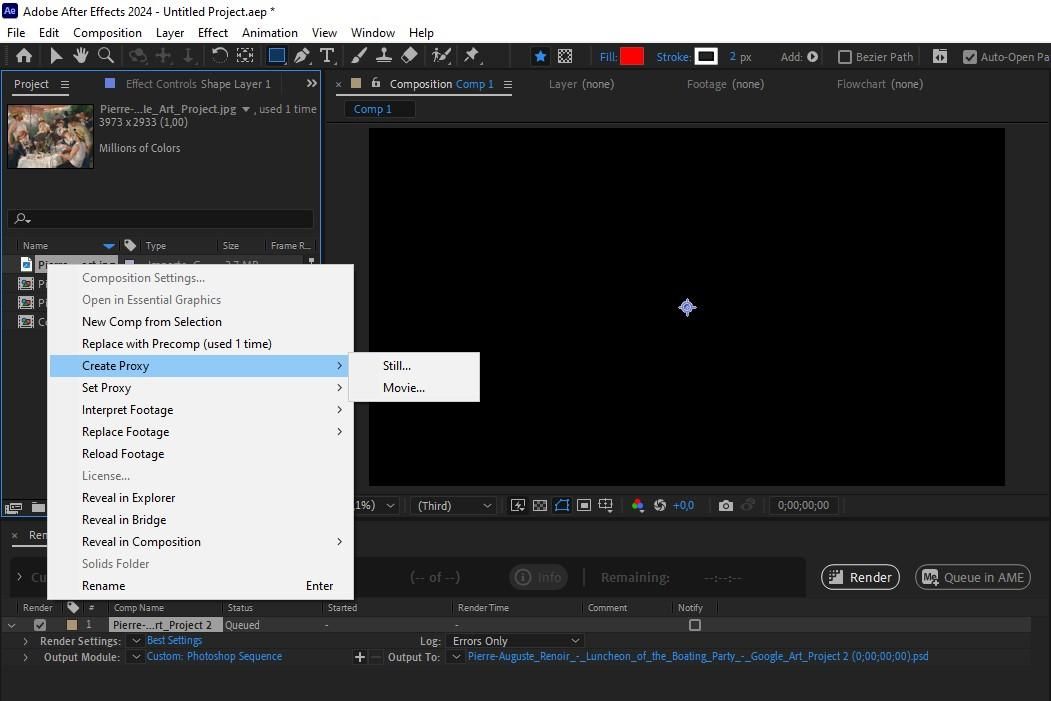
- Use proxies for large files. Replace high-res materials with smaller versions during composition rendering, then replace them for the final render.
What are Advanced Fixes for Persistent Crashes?
Advanced methods are needed after you have completed all basic procedures, and After Effects still continues to crash. The remedies require extra time to implement, yet they resolve issues that all other methods fail to address.
- Reset After Effects Performance. Close the program, then reopen it by holding down Ctrl + Alt + Shift (for Windows) or Cmd + Option + Shift (for Mac). After Effects will ask you if you want to clear your settings, and you can confirm. This often resolves hidden configuration conflicts.
- Check the After Effects logs. The logs often show when and why the crash occurred.
- Test a clean install. Create a new user account on your computer and open After Effects without any settings, plugins, or projects. If it works stably, the problem is in your main account configuration, not the software itself.
- If nothing works, uninstall After Effects via Creative Cloud, then reinstall it from scratch, manually deleting any leftover folders before reinstalling.
Professional Tip:
If AE continues to crash during rendering despite everything, the problem may not be in your settings, but rather that local hardware is not powerful enough for complex projects. Nexrender takes over rendering from your local computer to cloud, automating the process and eliminating the instability that comes from an overloaded local system.
How to Prevent After Effects Crashes
Most crashes don't come out of nowhere. Bad project habits build up until they create major problems.
- Optimize your project from the start. Your compositions should remain organized through proper layer management and regular deletion of unused elements. Clutter in your project directly affects stability.
- Use proxies for heavy files. Use lighter versions of materials while working, and restore the originals only for the final render, rather than having After Effects constantly render high-resolution materials.
- Group related layers into a pre-comp rather than keeping
everythingin a single composition. After Effects processes multiple smaller entities more easily than one cluttered composition. - Manage your assets carefully. After importing your files into the project, you must keep all files in one location without moving them. Missing assets are one of the most common triggers for crashes when opening a project.
- Install only the essential plugins you require, and verify their updates regularly, as each additional plugin you install can create a potential conflict.
Summary
The After Effects program crashes, and users can resolve the issue using specific methods. Make a backup of the project version regularly, because AutoSave is not always enough and one crash can cost you hours of work. Get used to manually saving versions at key moments during project development. Monitor the Adobe forums and community, because most crashes have already been documented and resolved by other users, often before Adobe releases an official fix.
If you work in a team, synchronize the versions of After Effects and plugins, because a project that works perfectly for one person may crash for another due to version differences. For projects that exceed the capabilities of local rendering, use Nexrender. Rendering automation is not a luxury but a practical solution when stability and speed becomes a priority.