How to Make After Effects Run Faster
If you don’t know why is After Effects so slow and you are frustrated about it, we understand. A slow AE decelerates your entire workflow because every preview, keyframe move, or effect change takes longer to complete. Such things waste valuable time, postpone projects, and annoy both you and your client. During this process, you're stressed, and your creative thinking suffers as you keep waiting to implement ideas. Buckle up, we are going to reveal how to make Adobe After Effects run faster.
Quick Check: What’s Actually Slowing You Down?
Identify your bottleneck: you need to test three different AE performances.
- Preview Playback: Check how your computer displays content in real-time while you work on your project. See if everything runs smoothly during preview, without any final rendering. Click on the preview panel and select RAM preview.
- Render Time: The question is how long it takes for your project to be finally rendered or exported to the final format. How to do it? Open Composition > File > Export > Add to Render Queue. Click the Render button. The program will display the render duration for you at the bottom right corner of the screen.
- User Interface Lag: UI lag refers to the delay or pause when moving layers, changing parameters, and other interactions with a program. You can check the responsiveness of the system to commands and how the UI behaves.
Scaling (HiDPI) of the display and the use of multiple monitors may also play a role in the UI responsiveness. Within the Windows settings, scaling is located under Display > Scale and Layout. Usually, there is a percentage option for scaling, which is either 100%, 150%, or 200%. A HiDPI monitor can have a setting of 100% or 125%. For Mac users, the scale is located inside System Preferences, under Display.
Connect monitors correctly, using the same graphics card, and set the resolution and frequency settings.
How to Make After Effects Faster
Optimize disk cache
After Effects uses disk cache to store temporary files. That makes rendering and previewing much faster. You need to manage the disk cache under: Edit > Preferences > Media & Disk Cache. To increase performance, make a larger cache allocation and store it all on a separate, fast drive.

Use Nexrender for batch jobs
If you want to know how to speed up Adobe After Effects, consider using Nexrender. This platform is made for automatically rendering multiple AE projects and compositions, batch creating multiple versions of a single video with different data, and uploading finished videos to the cloud, without manually transferring files.
Trim down your project complexity
Break down a large and complex project into manageable stages. Once you have completed everything, start putting all of them back together. Import them into one master project before rendering the final video.
Check for AE version and system updates
Go to Help > Updates to check if you have installed the latest version of After Effects, as well as any available updates. Also, you need to install the latest version of drivers and plug-ins. Pay special attention to video card drivers.
Modify screen output
To get started, in the Composition window, click on the drop-down and select a lower order for a faster view of the creation process. Click the FX icon next to an effect in the Timeline to temporarily turn it off during preview. Go to View > Preview > Resolution and select “Auto” or a lower value. Also, turn off effects like Motion blur until you get to the final render.
Adjust memory allocation
If your After Effects is running slow, adjust RAM allocation. Go to Edit > Preferences > Memory. Reduce RAM reserved for other applications so more memory is available for AE. Check “Installed RAM” and “RAM available for AE” to see the total memory and how much is allocated to AE. Enable “Reduce cache size when system is low on memory”, because that way, the cache is automatically freed when memory runs out.
Revise your monitor setup
Use one primary monitor for AR. While additional monitors may slow performance, they should be used only when necessary. A lower resolution (1080p instead of 4K) saves GPU load and increases UI responsiveness. Turn off HiDPI/ scaling if not necessary – high scaling (150%-200%) can cause UI lag. Ensure all monitors use dedicated graphics, not integrated.
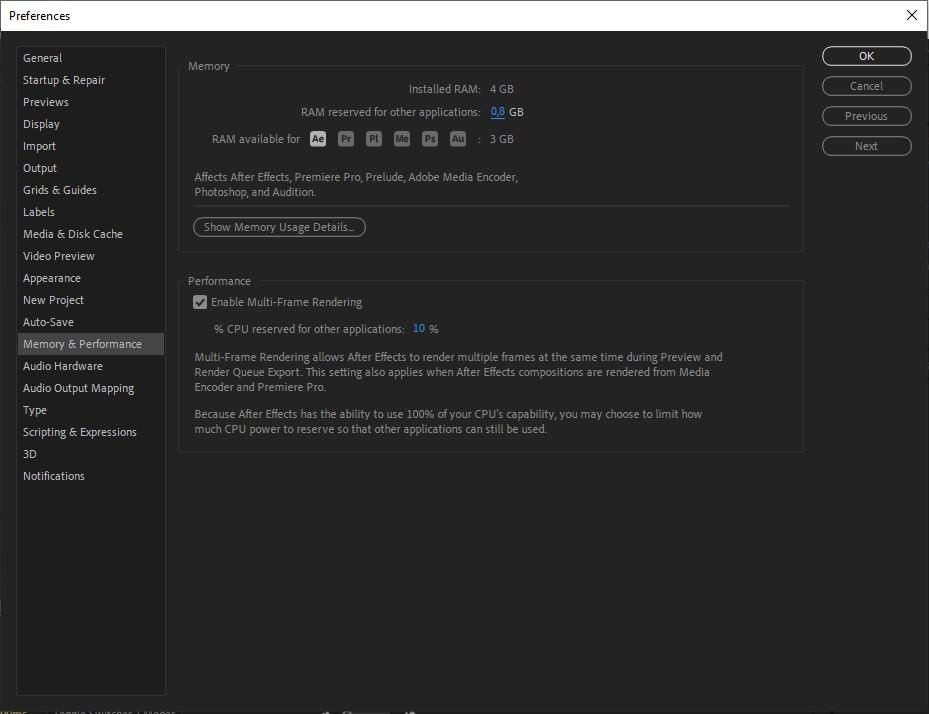
Upgrade your RAM
AE’s minimum requirement is 16 GB RAM to operate efficiently, while 32 GB is recommended. For optimal speed and specifications, preferably from the same model and manufacturer. Always check the maximum RAM capacity supported by your motherboard before you purchase one.. Enable disk cache in After Effects to free up RAM when it reaches its maximum capacity.
Close background apps
If any unnecessary programs are still running, go to the Task Manager and close them by selecting the tasks and clicking End Task before starting AE. On Mac, use Activity Monitor to list the applications consuming resources and then hit X to force-close them. Disable any cloud service automatic synchronization (OneDrive, iCloud, Google Drive) while you render.
Use SSD
Use an SSD to install After Effects. Set your hard drive to SSD to speed up reading and writing data during rendering and previewing. Use an SSD to store project files for faster opening and saving of compositions. For optimal performance, keep at least 20% of your SSD free. Avoid using an HDD for working files because an SSD is significantly faster, which affects rendering speed.

Quick reminder:
Nexrender can work in a distributed environment, which means that the rendering process can actually be divided across several computers, thus accelerating the complete workflow.
FAQ
Will a better graphics card improve After Effects speed?
Yes, the use of powerful graphics cards in After Effects will definitely speed up the overall processes, especially when focused on the usage of GPU-intensive effects and completing smooth transitions and renderings. However, you should know that a graphics card will not help at all on a system that doesn’t have an adequate CPU and RAM. All components must be balanced for best performance.
How much RAM do I really need for After Effects?
Adobe suggests using at least 16 GB of RAM for AE. However, for complicated projects, it will require no less than 32 GB of RAM. Basically, having more RAM means that you can handle more complex compositions, more layers, and more effects. It will also reduce the occurrence of lagging and freezing. Most importantly, for someone who frequently uses 3D effects or high-resolution video, additional memory would tremendously enhance performance and improve the whole process.
Should I use proxies in After Effects?
Yes, it is explicitly recommended to use proxies, especially for 4K or RAW footage, due to their ability to deliver lighter, smaller files during post-production. They also speed up After Effects processes while reducing the load on your computer. Proxies can be replaced for full resolution at the end of the editing process, so you'll end up with a high-quality final video without having to wait ages for the rendering during editing.
Do plug-ins slow down After Effects?
Yes, some plug-ins can slow down After Effects. More complex plug-ins can increase your render time, one way or the other, because they require additional resources. Disable any plug-ins that you're not using because it could free up some CPU resources and make your work easier and faster. Moreover, using well-optimized plug-ins that are specifically tailored for your version of After Effects can help maintain speed.