How to Connect After Effects with CRM Data
Personal video presents content tailored to the person watching it. This refers to the name, company, and offer. This kind of promotion is no longer a luxury, but is becoming a standard in digital marketing. Studies show that personalized video dramatically increases engagement, CTR, and conversions. It is clear that brands that use personalized videos build stronger relationships with customers and stand out in the crowded inbox.
After Effects is a powerful tool for creating video templates, but manually editing them for each contact is not scalable. When your CRM holds 500 contacts, that means 500 individual edits, renders, and exports. This seems impossible because each change requires opening the project, editing, rendering, and exporting. These actions include hours of work on the video. Such a practice simply cannot keep up with the pace of modern marketing.
CRM, or Customer Relationship Management, is a system within software such as HubSpot, Salesforce, or Pipedrive. It centralizes everything you know about your customers - their names, companies, preferences, and where they are in the buying journey. This data is extracted and sent to rendering engines, such as Nexrender, which then injects it into After Effects templates. Nexrender reads the templates, replaces dynamic values, and runs multiple renders automatically. This generates hundreds of personalized videos without a single manual step.
What Is CRM Data & Why Does It Matter for Video?
CRM data is structured information about each contact in the database. This includes name, company, email, sales stage, location, and more. CRM data management is the process of organizing, updating, and using this data across different systems. Video personalization usually needs the following fields: first name and last name to direct video greetings; company name to create custom branded content; deal stage to show different videos based on the lead status of demo or closing stage; location to create content that matches specific regions, and product information to display particular offers in the video.
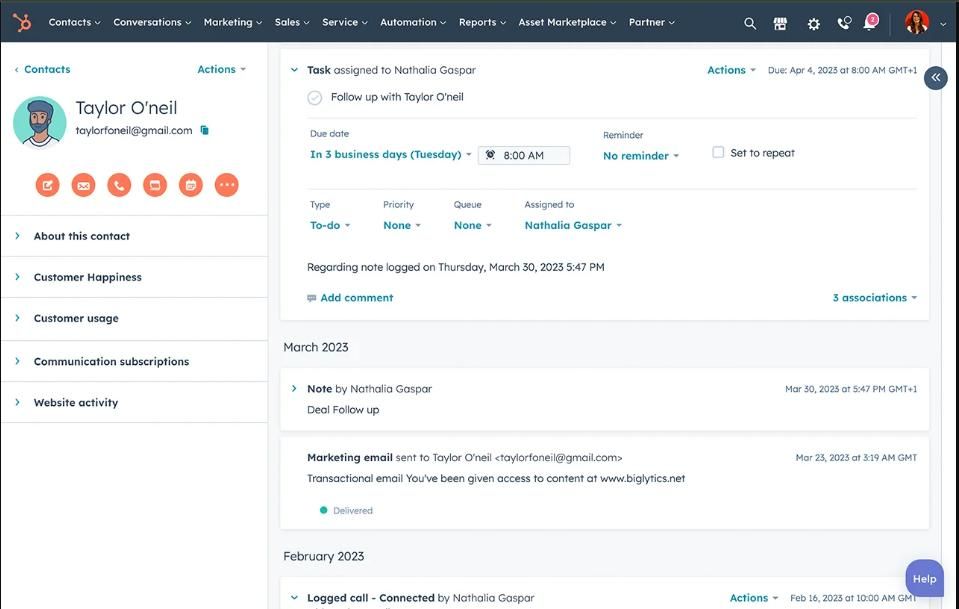
Image source: https://www.hubspot.com/products/crm/contact-management
What Is Adobe After Effects & What Makes It Suitable for Automation?
After Effects is a professional motion graphics and visual effects tool. It is used for animated graphics, intro/outro videos, promotions, explainer videos, and title sequences. It is most often used by designers, marketers, and video producers. Why are After Effects templates ideal for data-driven video? Once designed, a template can be used countless times. Every element in a template can be dynamic - text, color, logo, image, and duration. The project structure in AE is predictable and consistent, making it an ideal basis for automation. Every brand has its own visual identity, but the content is different for each recipient.
However, AE is designed for manual, creative work. It does not have native support for batch rendering with different data. Also, AE cannot read CSV and CRM exports and generate videos on its own. To automate it, an external tool is needed that takes control of the render, and that's where Nexrender comes in.
How the Connection Works: CRM Data to After Effects, Explained
- The good news is that this entire process can be automated through a three-stage pipeline that connects your CRM directly to After Effects.
- The first phase is CRM export. A list of contacts with relevant fields - contact name and deal stage - is extracted from the CRM system. This can be a manual export in the form of a csv or as an automated integration through API.
Each data raw from .csv export is formatted into a Nexrender friendly job definition according to the documentation. - Next, you submit each JSON to the Nexrender API, which creates a rendering job. Once the rendering is complete, you retrieve the finished videos as downloadable URLs.
The job file defines which layer in the template receives which data. Nexrender opens the AE project, replaces the value, starts the render, closes it, and moves on to the next contact. The rendering can also be done concurrently. The entire process is automated and does not require manual interaction.
CSV acts as a bridge because it is a universal format - any CRM can export it. This file is the only connection needed between the CRM and Nexrender.
This approach scales because templates are created once. Each new contact corresponds to a new row in the CSV file, meaning a new video without additional work. Nexrender can process hundreds or thousands of jobs sequentially or in parallel, and most importantly, there is no difference between the first and the thousandth video because each one goes through the same process.
Step-by-Step: How to Connect Your CRM Data to After Effects
Prepare After Effects template
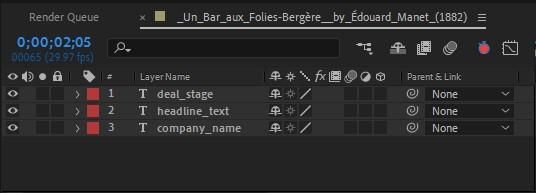
First of all, identify all the elements in the composition that will differ from video to video. It could be the client name, company, deal stage, date, or product name. Each of these elements must be a separate, clearly named layer in the timeline - not “Text layer 1” but client_name, company_name, deal_stage. Keep in mind that naming is not an aesthetic issue - the layer name must exactly match the key in the JSON file that Nexrender receives. A mistake in a single letter will prevent the data from being inserted.
Leave all static elements (background, music, and brand animation) as they are - they are not changed. Organize the folder structure of the project - fonts, logos, footage must be in a predictable place because Nexrender has to find them on each machine it renders on. Render once manually before automating. Change the text, media, and audio in the dynamic layers and check whether the composition looks right. At this stage, swappable text and assets should not overlap with other elements in the composition.
Connect CRM data
Once the template is ready, connect your CRM to Nexrender so that relevant customer data can trigger a video render. For example, when a new contact is created or a deal reaches a certain stage, the CRM can send an event containing data such as the customer’s name, company, or other fields you want to use in the video.
You can also connect the CRM through automation tools such as n8n or Zapier. These tools can receive the CRM event, map the relevant fields, and pass the data to Nexrender without requiring custom code.
Format data as a Nexrender job definition
The data from the CRM is used to create a Nexrender job definition in JSON. The job specifies the After Effects template to use and the values that should be inserted into the dynamic layers.
For example, a CRM record containing first_name: "John" can be mapped to a first_name text layer in the template. The same workflow can generate a separate Nexrender job for every contact, with each job producing a personalized video.
With n8n, Zapier, or a custom integration, this job creation can happen automatically as part of the workflow. Once the job is sent to Nexrender, it processes the template and returns the rendered video.Start the renders
When the render job is received, Nexrender takes control and starts the render. Nexrender Community is an open-source version that renders locally, on your own machine. It is ideal for testing workflows, smaller campaigns, and teams that want full control over the infrastructure. However, there is also a Nexrender Cloud version that does not require its own server and automatically scales with volume. It is ideal for larger campaigns where hundreds or thousands of videos need to be rendered without worrying about hardware. Nexrender Private Cloud is ideal for campaigns that require isolated infrastructure with all the benefits of cloud rendering. It is a good option for enterprise teams with strict data policy requirements.
The choice of option depends on three factors: how many videos need to be rendered, what are the technical capabilities of the team, and whether there are requirements regarding where the data is processed.
Download and distribute the output
After the render is complete, Nexrender returns a direct URL to the final video. This link is the main output of the entire pipeline. The video remains available in the cloud for up to 30 days. Teams with requirements for extended storage duration or their dedicated storage systems can use the workflow that starts automatic video transfer to AWS S3 and other cloud storage services right after the rendering process finishes. The video URL connects to the entire automation system while it functions across various channels at the same time.
When it comes to email, n8n can automatically launch an email campaign, because the email contains a thumbnail with a play button and a direct link to the personalized video. For other channels, the same link works on landing pages, in onboarding flows, in-app notifications, CRM contact records for internal teams, sales outreach messages, and messaging platforms.
Enrich CRM Data For Even Better Results
CRM data enrichment is the process of supplementing existing contact data with additional information that the CRM did not automatically collect. A basic CRM record has a name and email, and enrichment adds depth - job title, industry, company size, location, and behavior on the site. The richer the data, the more relevant the video. The difference between "Hi, Mark" and "Hi, Mark! We see that you are the marketing director at a tech company with 50+ employees". Enrichment can also come from external tools (for example, LinkedIn) that integrate directly with the CRM.
Here are some examples of data enrichment useful for video personalization:
- Job title - a customized message depending on whether the recipient is an H-level, manager, or operations team. industry - a different example of a use-case depending on the sector (SaaS, retail, healthcare...).
- Behavioral data - a contact who viewed a pitch page gets a different video than one who just opened a blog post.
- Sales cycle stage - a video for a new lead and a video for a contact who is close to making a purchase.
As we have already emphasized, the template is designed once, and all animations, branding, and structure remain the same. The only thing that changes is the values of dynamic fields coming from the CRM. This approach is the basis of scalability. The volume of the campaign does not affect the quality or the time the designer spends.
Summary
Connecting CRM data to After Effects through Nexrender transforms a manual, unscalable process into an automated pipeline that generates personalized videos for entire contact lists. The quality of personalization directly depends on the quality of the data - the richer the CRM record, the more relevant the video, which means better engagement and higher conversions. The setup is not reserved only for developers. With the right tools ( Nexrender + n8n, Zapier etc.), everyone in tech can set up a functional workflow.
FAQs
What CRM systems work with After Effects via Nexrender?
Nexrender does not communicate directly with the CRM but instead receives JSON/CSV files, so it technically works with any CRM that can export data. For example, HubSpot, Salesforce, Pipedrive, and Zoho - all can generate the required format. For automated integration, a connector like n8n is used to monitor the CRM and forward data in real time.
Do I need coding experience to connect CRM data to After Effects?
It depends on the approach - for a basic setup with n8n (a no-code tool), no coding is required. For custom integrations or complex workflows, basic knowledge of JSON and APIs is useful. Nexrender’s dashboard offers a visual interface that reduces the need to write code. Marketers without a developer background can also set up a functional pipeline.
Can I use existing After Effects templates for CRM-driven video?
Yes, but it’s important to remember that preparing the template for automation makes the process easier. Dynamic layers should have clear, custom names so they’re easier to identify and map to your CRM data. You can read more about preparing After Effects templates for automation.
How does Nexrender handle large volumes of CRM-personalized renders?
Nexrender processes jobs sequentially or in parallel, depending on the version and configuration. Nexrender Cloud automatically scales with volume - without worrying about hardware limitations. For local rendering (Community version), the speed depends on the machine specifications. A thousand videos is not a problem for a cloud setup - each job is processed independently.
Is my CRM data secure when used with Nexrender?
Data passes through the pipeline only at rendering time; it is not permanently stored outside the defined storage. The Nexrender private cloud option allows companies to keep data within their own infrastructure. For enterprise teams with strict data policy requirements, a private cloud is the recommended option. Encrypted connections and limiting access to job definitions containing personal data are recommended.
What's the difference between CRM data management and CRM data enrichment in this context?
CRM data management is the process of organizing, updating, and maintaining existing data in a CRM. It is the foundation without which the pipeline cannot function. CRM data enrichment is the process of supplementing CRM data with additional information (job title, industry, and behavioral data) from external sources. In the context of video personalization, engagement ensures that the data exists and is accurate, while enrichment ensures that it is rich enough for the video to be truly relevant.